
Find Backlinks to Your Site With Google Analytics
With the demise of Yahoo Site Explorer at the end of 2011, it’s not all doom and gloom for SEOs around the world. There are still plenty of great ways to find backlinks without breaking the bank or compromising on the quality of your data (at least when it comes to your own site, that is).
SEO tools are great for competitive benchmarking and general analysis of backlink profiles: Open Site Explorer, Google Webmaster Tools, Bing Webmaster Tools, ahrefs and Majestic SEO. But they only offer a snapshot of where your links are coming from.
Mining your web server logs can give you a pretty complete list of backlinks too, as some crawlers and most visitors will report the referrer to your HTTP server - even if they aren’t running JavaScript. But this is practically impossible for most people to do, so best to steer clear of it.
Google Analytics can also show you a fairly comprehensive list of backlinks along with visitor metrics. If you subscribe to the view that well trafficked links generally have higher value, then visits and user engagement are good metrics to help judge link value. Sure it won’t tell you how many of those links still exist, what anchor text they use or how many are rel=”nofollow” but that’s why you use tools like Niels Bosma’s SEO Tools for Excel once you have the data.
Best of all, the GA method, takes you no time to pull the reports you need. “How long, Rob?” you ask. Just 5 minutes or about “…………….” yay long.
The problem with Google Analytics
Typically SEOs shy away from using backlink data out of Google Analytics. Most SEOs may know about Analytics’ ability to show referrers, but they don’t use it because out of the box, the data sucks.
You simply can’t get a full URL out of the “Full Referrer” dimension (of all places)… Just look at this:
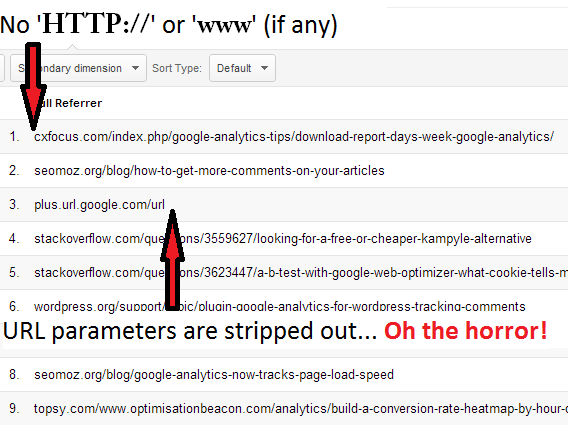
OK - Look away, dear reader. Let’s look at how we can fix this up.
Don’t worry, you can apply a simple, yet crafty, filter to fix this in a couple of minutes.
Step 1. Setup the Full Referrer Profile Filter
Here’s how:
1. Create a new profile or use an existing one if you have the bollocks (remember, apply profile filters permanently alter your reports data, there’s no “undo button” if you mess up your main profile).
2. When you’re in the profile, follow these links, “Admin” in the top right > “Filters” in the profile tab > “+ New Filter”
3. Create a filter , with the settings I’ve used in my example below:
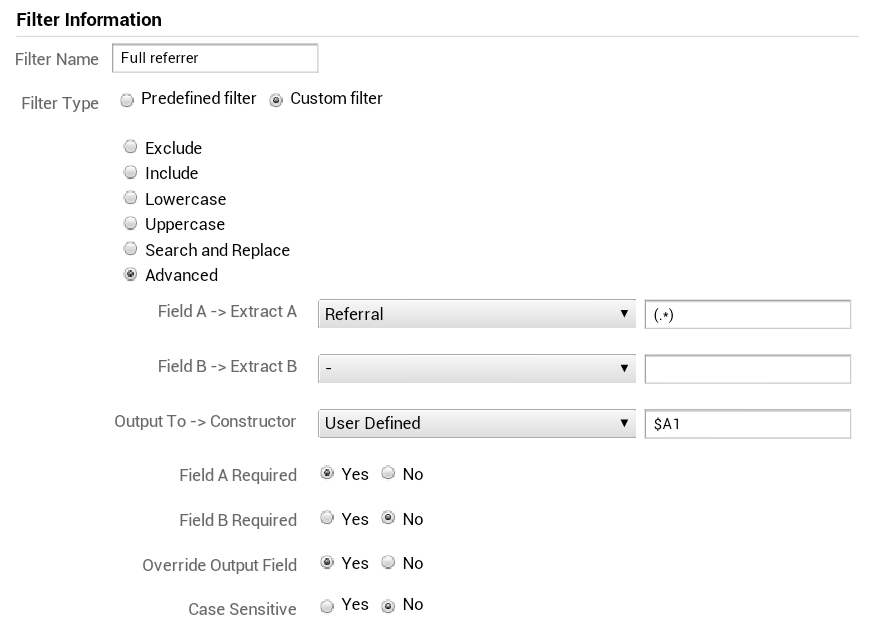
This profile filter will add full referral URLs into your user defined value in Analytics.
Optionally, you may want to create filters to remove certain parameters from the Full Referrer such as utm_source and other popular ones.
Step 2: Loading up the Custom Report in Analytics
Simply open this custom report with a decently large date range, including the date range from when you setup the filter. And ensure you’re looking at the profile for which you setup your filter.
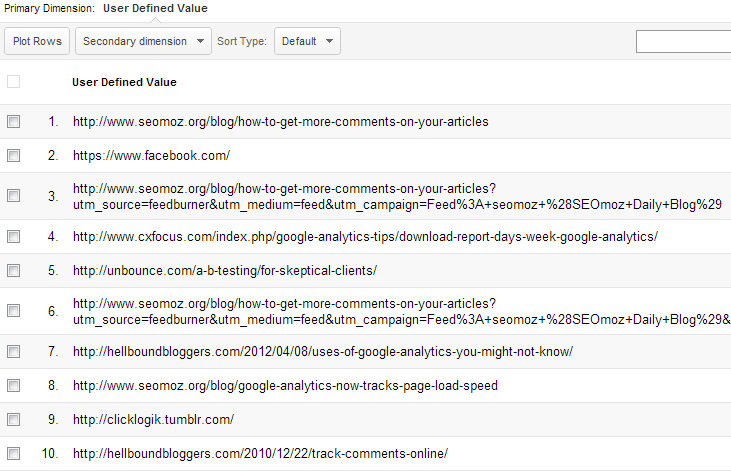
You may need to customise the report a little to exclude some nonsensical links, but once it’s setup, it’s quick and easy to use.
Step 3: Export & Analyse the Data in Excel with Niels Bosma’s SEO Tools
First of all, if your report returns more than 500 rows, use Sumo Baby’s handy boomarklet which makes it possible to export up to 10,000 rows at a time.
Then, hop on over to Niels Bosma’s site for analysing all this data in his handy SEO Tools plugin for Excel.

This amazing tool will make the data much more useful for SEO.
Comparison of using GA to other tools
Unfortunately I haven’t got a lot of retroactive data with this filter which I applied for my own site (it’s a bit of a case of the gardener’s garden), so I have reverted to using the inferior full referrer dimension. Even then, it demonstrates that Analytics is capable of finding a healthy number of links.
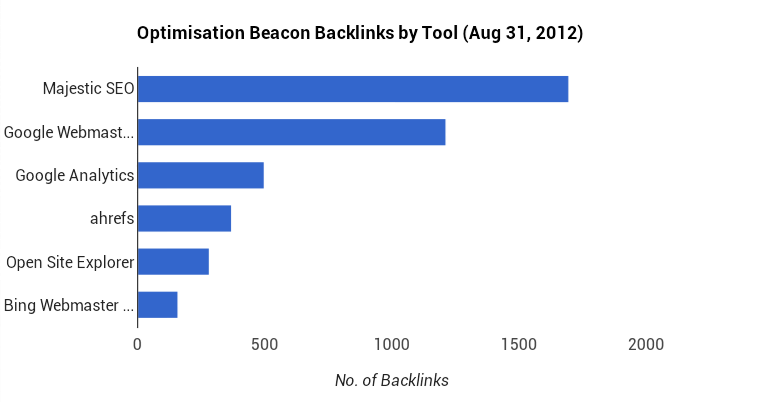
Google Analytics doesn’t show the highest number of backlinks, but it does show a reasonable number of them alongside useful metrics.
Google Analytics (without full referrer hack above): 501
ahrefs: 372
Open Site Explorer: 283
Majestic SEO: 1698
Google Webmaster Tools: 1211
Bing Webmaster Tools: 160
Server logs: Did not measure - I should have, could have, would have but I didn’t.
Pro tip #1: Track a rolling total of links or new backlinks created Month-on-Month
Google Analytics V5 allows you to bookmark and share URLs to access unique reports. If you want a rolling count of the number of backlinks, simply change the date range in the URL (formatted as YYYYMMDD) to a far off future date and bookmark the URL.
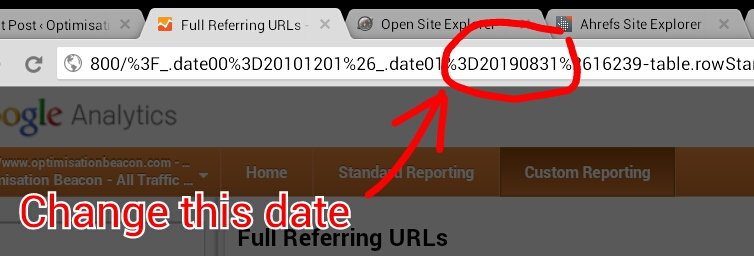
Simply change the date in the URL of this custom report to something well into the future. In this example, I have it set to 31 August, 2019.
Likewise tracking new backlinks each month can be done very easily by the following formula:

Pro tip #2: Use Google Analytics’ Built-in Social Activities Report
Another option you can take, as detailed by Daniel Waisberg is to use Google Analytics’ own social backlinks report which combines shares and links in the same report.
Simply pop into Google Analytics and follow these prompts: Traffic Sources > Social > Pages > Activity Stream > Events
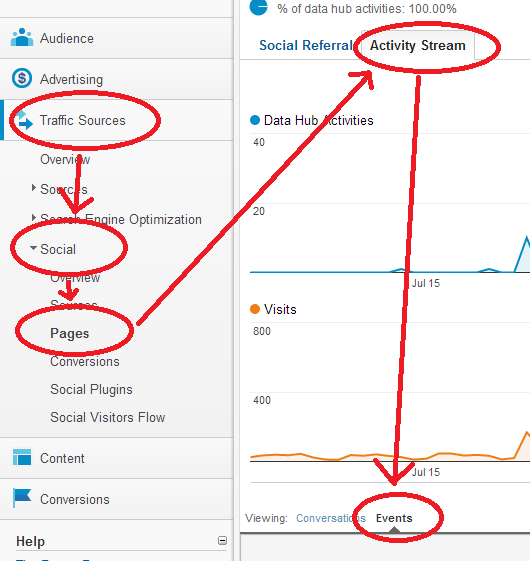
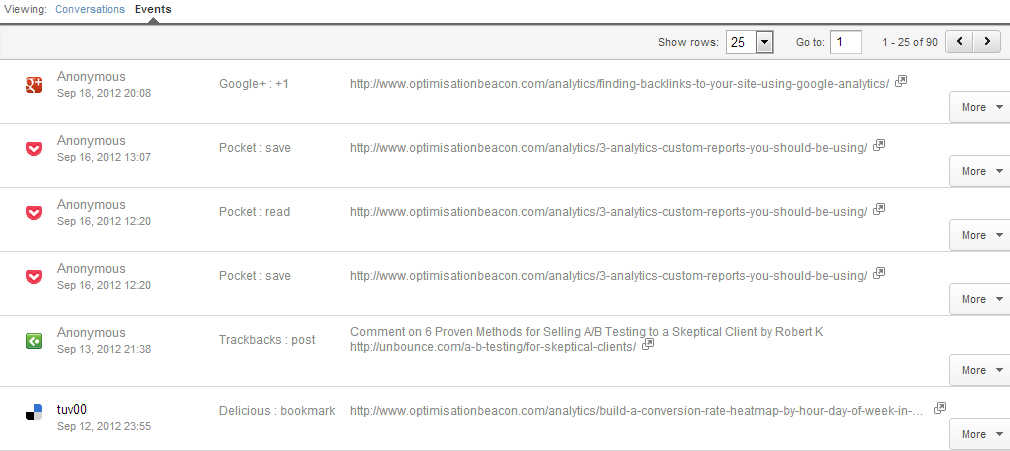
From here, you will see a range of backlinks which Google Analytics characterises by how it was shared:
Happy backlink checking, folks!


Thanks for your useful information. I hope, I can improve my website ranks significantly.
Glad you liked it Kelsey.
May it help you discover many a linking opportunity.
I’m having trouble getting this to work. I do see SOME referrals, but I’ve had to add a filter to show only those starting with “http”
The number of backlinks seems very low to me as it’s only showing 8 over the last week.
Any help would be great.
Hi Russell. Be aware that this report will only show backlinks if you get visits from those sites. Therefore you will want a pretty decent date range for it. I’ve had this running for quite some time on my site now and it produces quite a significant number of backlinks. Hope that helps…
How did you go with this, Russell? Let me know if I can lend a hand…
This is precisely, I am looking for simple and clear information about how to track referrer url.
Thank’s
Thanks for sharing useful tips.
Great info, thanks for sharing it! . But I’m glad I searhced and found your article - I got a better insight than simply by searching around the menus of Google Analytics :).
I found once where to check the total number of backlinks to my new travel and photography website, but can’t figure it out now how I did it
Thanks for this post. There is so much to learn in this SEO world. Just starting out, it’s great to have awalkthrough with screenshots to help out!
I’ve just started with this whole website things and was looking out for some good information on Google analytics and I enjoyed your short tutorial. I always wondered how to keep a track of my top referrals, and now found Google Analytics. Thanks for the info.