
Track Page Load Times with Google Analytics’ Asynchronous Script
Did you know page load times have been shown to impact conversion rates, revenue and other metrics on your site? Here’s some stats:
- Increasing the size of search results pages from 10 to 30 results increased page load by 500 milliseconds and decreased Google’s revenue by 20%
- Every 100 milliseconds of extra load time impacts Amazon’s revenue by 1%
For more information on how much load times can cost you, read my article over at Experian Hitwise.
Want to measure page load times on your site to see the impact it has on revenue, conversion rates and other metrics? Well I’ve found a way to do it based on a great article from Panalysis, along with my own tweaks (mostly to suit it to my purposes and modify the code for the updated tracking).
Overview
My modified solution for tracking page load times requires the following things:
- A website – preferably with enough traffic from different countries or high enough server load to affect page load times
- Google Analytics’ new asynchronous tracking script installed and functioning on the site
- Modifying the existing Google Analytics code to work with two tracking objects (to avoid messing up the bounce rate calculation)
- A second Google Analytics profile setup with a different UA code to your website’s main page
- A fair knowledge/passion for Google Analytics
So without further ado, here’s how to do it.
Installing and customizing the code
Before doing this, you must update your existing Google Analytics code. This is important as we’re going to use two tracking objects on the site – one for the normal tracking of your site and another for the tracking of page load times. I suggest pre-pending “pageTracker” to any calls to ._trackPageview, ._setAccount or any others. If you were to use the same object for both your normal tracking and the load time tracking, your bounce rate metric would be impacted.
So instead of this:
<script type="text/javascript">
  var _gaq = _gaq || [];
  _gaq.push(['._setAccount', 'UA-15373241-1']);
  _gaq.push(['._trackPageview']);
  (function() {
    var ga = document.createElement('script'); ga.type =
'text/javascript'; ga.async = true;
    ga.src = ('https:' == document.location.protocol ? 'https://ssl' :
'http://www') + '.google-analytics.com/ga.js';
    var s = document.getElementsByTagName('script')[0];
s.parentNode.insertBefore(ga, s);
  })();
</script>
Your tracking code will look like this:
<script type="text/javascript">
  </script>
Once that’s done, you need to place the following code right at the top of the document’s header (this collects the time that the document started to load):
<script type="text/javascript">
var plstart = new Date();
</script>
Next, you’ll need to place this code somewhere after the Google Analytics script. This handles the logic and event tracking for the page load times. It’s important that you add your UA code to this section before pasting it on your website:
<script type="text/javascript">
window.onload=function() {
var plend = new Date();
var plload = plend.getTime() - plstart.getTime();
if(plload<1000)
lc = "Very Fast";
else if (plload<2000)
lc = "Fast";
else if (plload<3000)
lc = "Medium";
else if (plload<5000)
lc = "Sluggish";
else if (plload<10000)
lc = "Slow";
else
lc="Very Slow";
var fn = document.location.pathname;
if( document.location.search)
fn += document.location.search;
try {
_gaq.push(['loadTracker._setAccount', 'UA-15373241-2']);
_gaq.push(['loadTracker._trackEvent','Page Load (ms)',lc + ' Loading Pages',fn,plload]);
_gaq.push(['loadTracker._trackPageview']);
} catch(err){}
}
</script>
Here, I have updated the code slightly, so that it records the time down to milliseconds. So, when you see 4,345 as the page load time in Google Analytics, that is actually 4.345 seconds. I’ve also lowered the times in the load category – in general I think it’s best practice to have pages loading within two seconds.
I’ve also updated the code to track a pageview and record the page a visitor is on, so the second profile has all the pages in the reports for you to measure goals with.
Tracking goals and ecommerce transactions
If you want to setup goals and ecommerce tracking for this, you may need to add code to report transactions and page views to “loadTracker”.
You’ll also need to make sure the profile is setup with all the right filters and settings to track everything properly.
Example reports
So, assuming everything has gone well, you should now be able to see the following reports in Google Analytics.
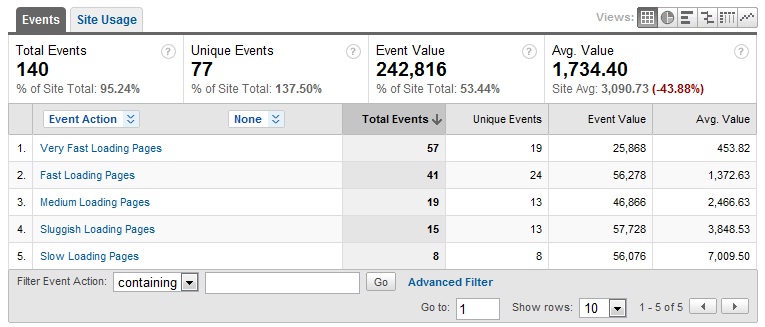
I suggest setting up advanced segments to make the most of this – this will let you look at people with fast load times and see how their conversion rate differs from people with a slow page load time.
I also suggest excluding “Very Slow” if you want to get a good indication of your page load times for the average user - this will remove any outliers which are skewing your average. In my case, 7 “outliers” increased my page load time from 1.7 seconds to 3.4 seconds. BIG difference.
Wishes for the future
What I really wish Google Analytics could do is allow you to filter events – this would make the whole implementation much easier and allow you to customise the data sooo much more before it even reaches the reports. At the very least GA should not count Events against the bounce rate metric. Another really useful functionality to have in the GA reports interface would be to graph the average event value over time of day and day of the week.
Anyway, I hope that was useful. Let me know in the comments how you found it or if you need help.


Nice post Rob. I’ve been looking at including the page load time in some tracking, so this is good information. You mention the annoyance of events affecting bounce, this and the fact events can’t be used for goals are probably to two of the more annoying things with GA.
Out of interest, have you tried the load time in a page level variable instead?
I’ve thought about setting it as a page level variable but that would mean the tracking beacon wouldn’t be sent if an image is still loading while the visitor moves onto the next page.
i.e.
Page downloads
DOM is ready
Visitor sees links to click or decides to bounce
Visitor leaves while elements on the page are still loading
Page still not considered to be fully loaded (by the tracking) - custom variable is not set and no page view is tracked
Regardless, the data that is returned is really interesting. I might make a post about it to share some of the details…
Thanks for this Rob. I’ve been tinkering with similar scripts all morning and this is the only one that has worked for me.
I have some long landing pages that I want to measure, so what would I amend so that I could measure and compare the load times of specific pages?
Thanks
Al
Hi Al,
Thanks - I’m glad it’s helped. You shouldn’t need to amend anything. Just go into Analytics and follow these links to find load times by page:
Content > Event Tracking > Labels
Here, you’ll see approximate load times in milliseconds (4,384.67 which corresponds to 4.38 seconds) for each page on your site.
The only thing that I think you’ll need to consider (if you haven’t already) is that since you want to measure landing pages, it’s going to be very important that you use two separate Google Analytics profiles (i.e. with different UA numbers and all) because the last thing you want to see is a 0% bounce rate on your landing pages.
Does that answer your question?
Rob, me again!
Like you say, clicking on ‘labels’ provides the info that I need - thanks.
One issue that I’ve got though…
On my main Analytics profile I’ve noticed a big jump in visitors since I implimented this code. When I look at hits on content though, that’s remained constant. I assume that when people are clicking to another page, they’re being classed as a new visitor. Do you know what would cause this?
Thanks
Al
Hi Al,
I’ve noticed similar. As far as I know, it looks like some visitors do and don’t trigger the analytics code. E.g. I’m seeing a 1.2% higher number of visits in one profile and 2% less on another site I track load times on. How about you?
Note the other site that was lower did not use trackPageview for loadTracker for a short while…
thanks man, this is super helpful! you’re a genius
Thanks, Rory - Glad you liked it.
I can’t take full credit for this, I have updated the code from Panalysis and added my own tweaks: http://www.panalysis.com/tracking-webpage-load-times.php